
Cable Types Guide: RF Coaxial, USB & Jumper Cables
Aug 12,2025
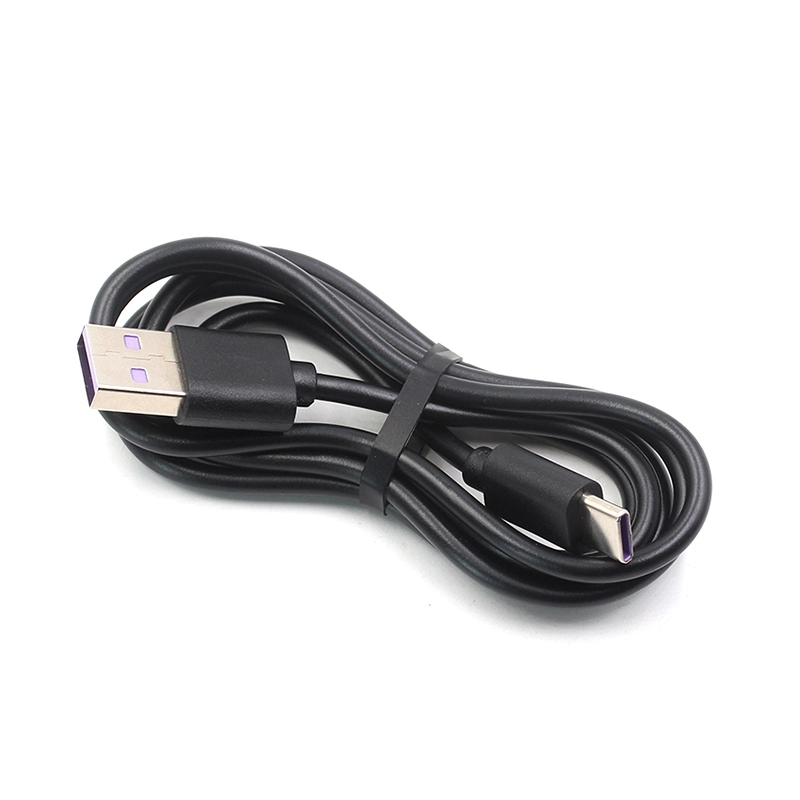
This product image displays a range of USB cables with different connector types, lengths, and build qualities, suitable for charging and data transfer across various electronic devices.
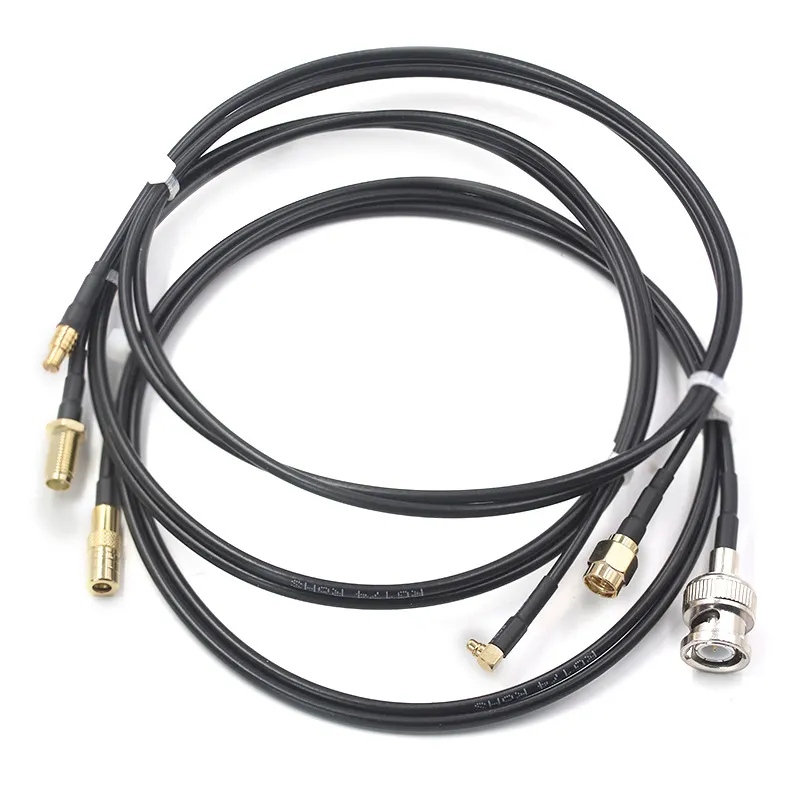
This image shows an RF coaxial cable designed for stable, low-loss high-frequency transmission, featuring SMA connectors for secure and precise connectivity in wireless communication and testing applications.
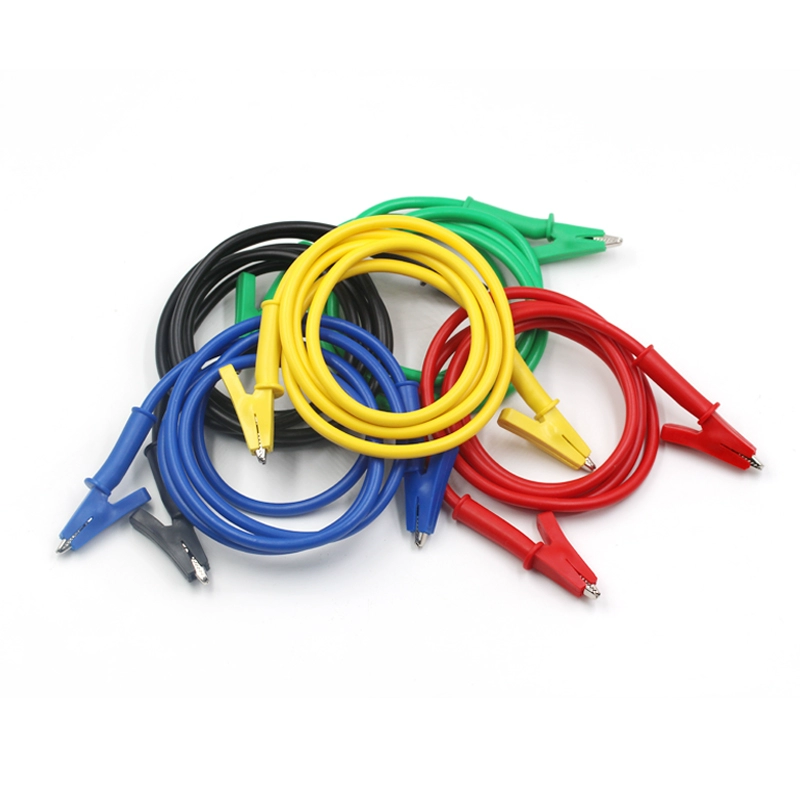
This product image features heavy-duty jumper cables with thick-gauge wires and strong clamps, providing reliable power transfer for starting cars, trucks, and other vehicles in emergencies.
Every day, whether you notice or not, cables are quietly at work — keeping the lights on, your phone charged, and your internet streaming smoothly. They snake behind desks, hide inside walls, and stretch between buildings. Yet most of us don’t give them a second thought until something stops working.
Here’s the catch: not all cable types are created equal. A thick jumper cable that can jolt a car battery back to life has nothing in common with the slender USB lead feeding data to your laptop — except that they both move energy from one place to another.
In this guide, we’ll take a tour of four cable types you’re most likely to meet —
- Coaxial cables (RF cables) for TV, internet, and antennas
- USB cables in all their confusing shapes and speeds
- Jumper cables for those “car won’t start” mornings
- Cable ties (zip ties) — not a cable at all, but the unsung heroes of cable management
Along the way, you’ll pick up real-world tips: which coaxial cable is best for your TV, how to spot a USB 3.0 cable without squinting at specs, the exact safe order to connect jumper cables, and how to bundle wires without turning them into a heat trap.
By the end, you won’t just know the names — you’ll understand which cable to grab, how to use it safely, and when to avoid a bad choice. Because choosing the right cable isn’t just about making something work — it’s about making it work well and safely.
Types of Cables: An Overview
Step back for a moment, and the cable types world sorts itself into three big families. Imagine a family reunion: they all share the same bloodline, but each relative has a completely different profession.
- Power Cables – Built to move electricity from point A to point B.
- Communication Cables – Carry information signals like TV, internet, or phone calls.
- Device & Data Cables – Connect gadgets together, often handling both data and power.
Some technicians also throw in specialized network cables as their own category — things like shielded Ethernet or hybrid fiber cables that mix power and data in one run. But for most people, sticking to the big three makes the topic easier to digest.
1. Power Cables
These are the muscle of the cable world. They don’t care about data; their job is delivering volts and amps reliably. In homes, you’ll see insulated copper electrical cables (often in non-metallic sheathed form) feeding outlets and lighting circuits. In factories or heavy industry, armored or high-voltage cables take over, designed to survive crushing loads, oil exposure, or extreme temperatures.
Quick guide to common power cable sizes:
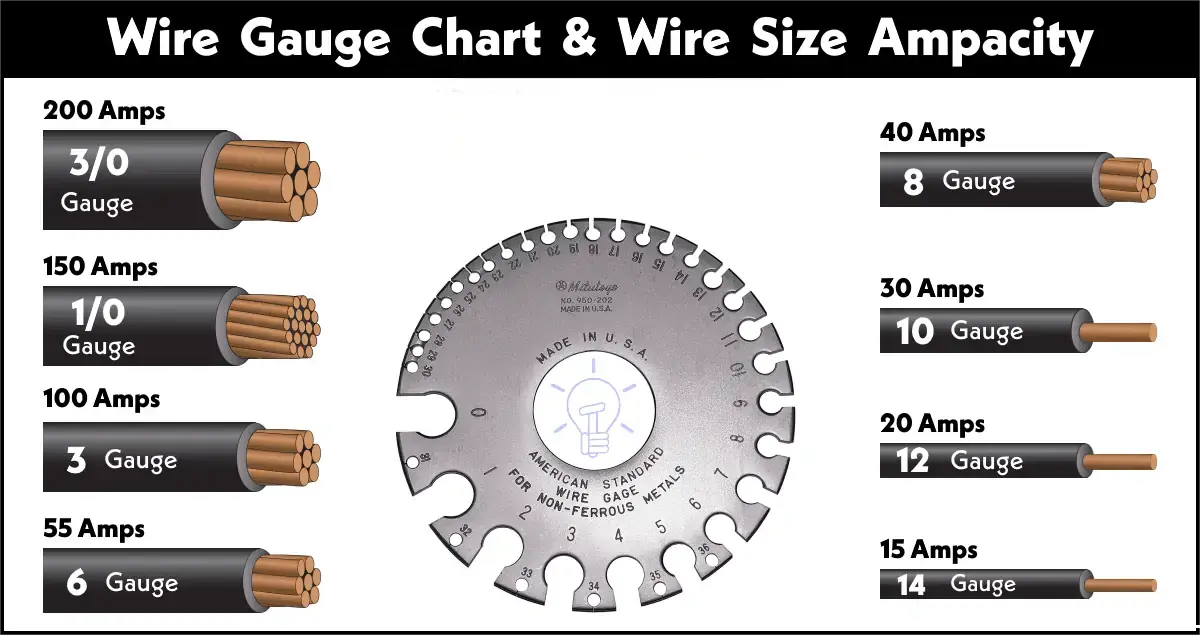
This chart lists popular power cable sizes from 14 AWG to 4 AWG, detailing their suitable applications such as lighting, outlets, and high-power appliances, along with maximum current capacity.
| Gauge (AWG) | Common Use | Max Amps (Approx.) |
|---|---|---|
| 14 | Lighting, small appliances | 15 A |
| 12 | General outlets, microwaves | 20 A |
| 10 | AC units, water heaters | 30 A |
| 4–6 | Electric ranges, subpanels | 55–95 A |
Pro tip: Lower gauge numbers mean thicker cables, capable of carrying more current. If you’ve ever wondered why an extension cord overheats, it’s often because the wire gauge is too small for the load.
2. Communication Cables
This is where coaxial cables, twisted-pair Ethernet, and fiber optics live. Their mission isn’t to move raw power, but to transport signals without losing quality.
- Coaxial cable (RF cable) is the old faithful for TV, internet, and antenna feeds. It uses a shielded concentric design to block interference. If you want a deeper dive into how coax works and which type to buy, check the RF Coaxial Cable Guide.
- Twisted-pair cables (like Cat5e, Cat6) are the workhorses of computer networking. The twists in the wires cancel interference, keeping your gigabit speeds stable.
- Fiber optic cables swap electricity for light pulses — perfect for ultra-high-speed internet or long-distance telecom links.
3. Device & Data Cables
This is the grab-bag category — everything from your USB cables to HDMI cords to SATA connectors inside a PC. These are often the “visible” cables in everyday life, and they come in endless variations.
A simple example:
- USB Type-A to Micro-B – Old standard for charging many gadgets pre-USB-C.
- USB Type-C – Modern reversible plug for laptops, phones, and more.
- HDMI – Carries both high-definition video and audio from source to display.
- SATA – Links your computer’s motherboard to storage drives.
Many device cables now pull double duty, carrying both data and power. USB-C with Power Delivery can push up to 240W in its newest spec — enough to run a gaming laptop and charge it at the same time.
So, how many cable types are there really?
If you count every niche application — submarine fiber, welding leads, medical imaging cables — the list is endless. But for practical purposes, mastering the three core categories above will prepare you for 90% of what you’ll encounter, whether at home, in your car, or on a job site.
Coaxial Cables (RF Cables)
If there’s a single cable type that has stood the test of time in the communications world, it’s the coaxial cable — or just “coax” if you want to sound like a seasoned installer. From the back of your TV to rooftop antennas, coaxial cables are the unsung workhorses moving radio frequency (RF) signals with minimal fuss.
What makes them special is their layered build:
- Central conductor – the copper core that carries the signal.
- Dielectric insulator – a precise cushion that keeps the core centered and controls impedance.
- Outer shield – usually braided copper or foil, blocking interference.
- Protective jacket – the outer skin that resists abrasion, weather, and UV light.
That “coaxial” name literally means the inner conductor and outer shield share the same axis. This geometry is not just for show — it keeps the signal trapped inside and the noise out, which is why coax is a staple for TV, internet, CCTV, and RF test setups.
Where You’ll See Coax in Action
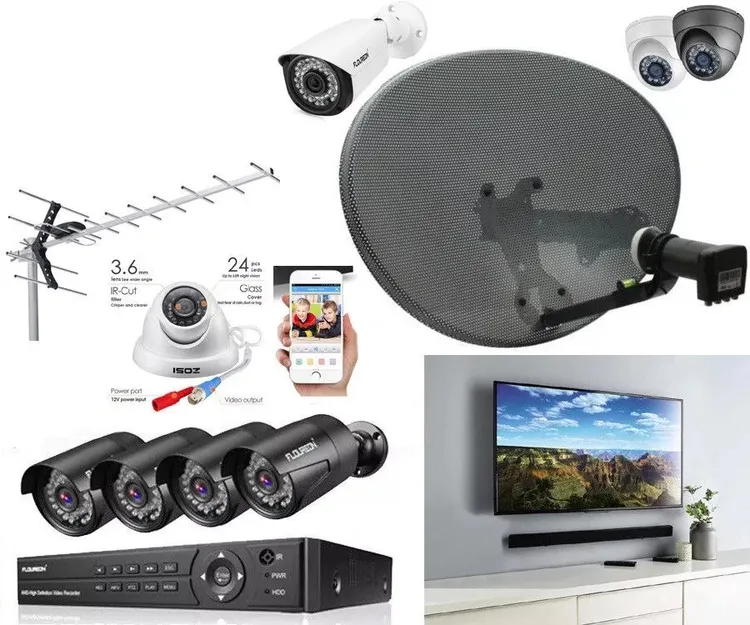
This image showcases different scenarios where coaxial cables deliver reliable RF signal transmission, from home entertainment to professional testing.
- Cable TV & broadband internet – the RG-6 cable from your wall jack to the modem.
- Satellite dishes – carrying LNB output to receivers indoors.
- Security systems – connecting CCTV cameras to DVRs.
- Ham radio & CB setups – linking transceivers to antennas.
- RF lab gear – precision-grade coax for signal generators and analyzers.
If you’ve got a rooftop antenna feeding digital TV, or a cable company hookup, you’re using coax — even if you haven’t seen it behind the drywall.
Comparing Common Coax Types
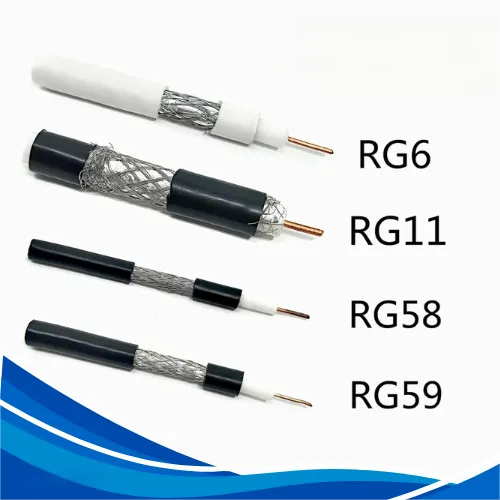
This table compares RG6, RG59, and RG11 coaxial cables, highlighting their ideal use cases, loss characteristics, and handling flexibility.
Different coaxial cables handle distance, flexibility, and frequency differently. Here’s a quick reference for the most common home and light commercial RF cable types:
| Cable Type | Impedance | Typical Use | Signal Loss @100 ft (750 MHz) | Flexibility | Notes |
|---|---|---|---|---|---|
| RG-6 | 75 Ω | TV, broadband internet | ~5.65 dB | Moderate | Most common for home installs; good HDTV performance. |
| RG-59 | 75 Ω | CCTV, older analog TV | ~7.0 dB | High | Thinner, easier to bend, but higher loss—use for short runs. |
| RG-11 | 75 Ω | Long cable TV runs, backbone links | ~3.5 dB | Low | Thicker, lower loss, harder to route—ideal for >100 ft runs. |
50Ω vs 75Ω – Why It Matters
Not all coax is interchangeable. 50-ohm coax (like RG-8, RG-58) is used for RF transmission and test gear, while 75-ohm coax is standard for video and broadband. Mismatching impedance won’t cause an explosion, but it can cause signal reflection and degrade performance — a bad trade when you’re chasing a clean HDTV picture or stable RF link.
Fun Fact & Pronunciation
People sometimes overcomplicate “coax” — it’s simply pronounced like the verb coax (“koh-aks”). And no, “coax cable” isn’t redundant; it’s just the way technicians talk.
Internal Link for Deeper Reading
If you want a deeper breakdown of RG types, shielding options, and connector choices, check the RF Coaxial Cable Guide — it’s packed with diagrams and real-world install tips.
USB Cable Types and Standards
If there’s one set of cable types that causes more confusion than it should, it’s USB. The “U” stands for Universal, but anyone who’s dug through a drawer of tangled cords knows it feels anything but. Between different connector shapes and speed standards, it’s easy to grab the wrong one — and then wonder why your device won’t charge as fast or transfer files quickly.
Connector Shapes – USB’s A, B, and the New Favorite C
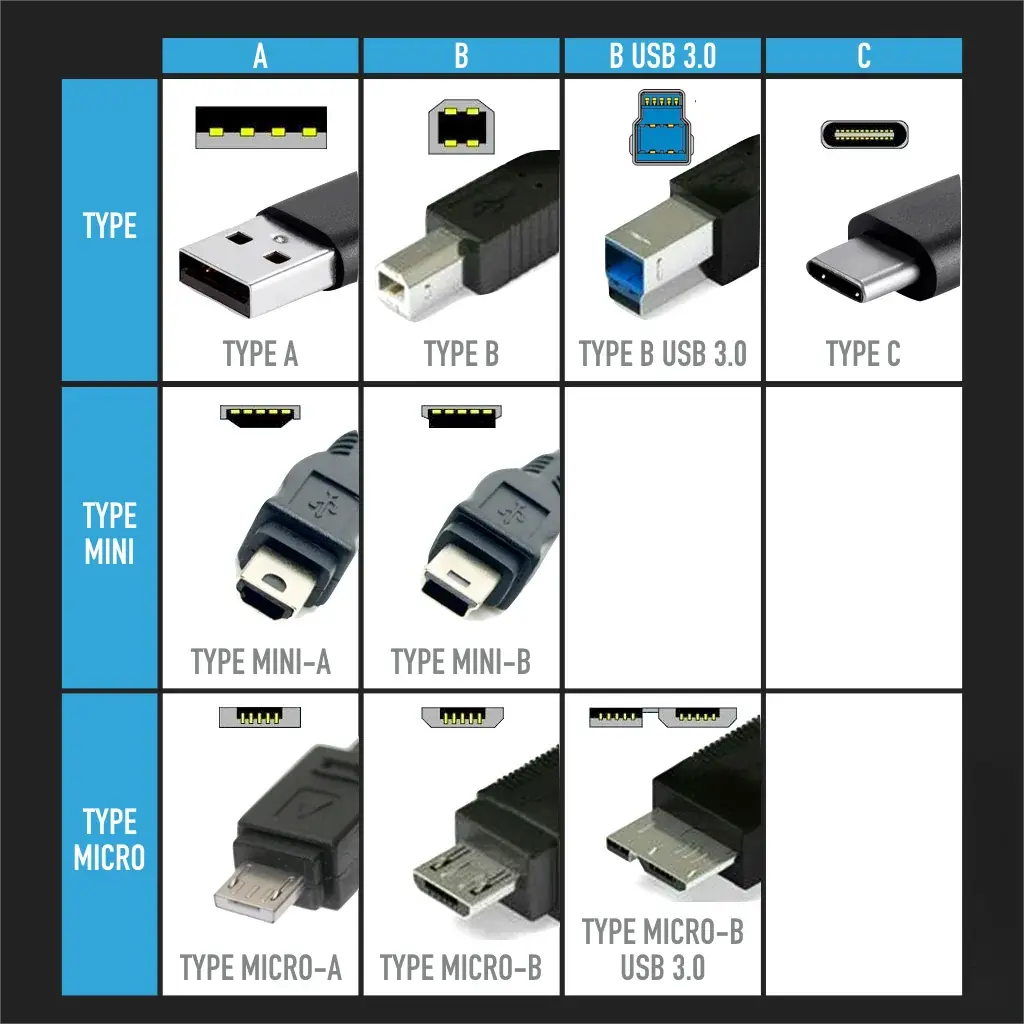
This image explains USB-A, USB-B, and USB-C connector designs, listing their key characteristics and compatible devices.
Before we even talk about speed, USB connectors are all about shape. That’s why an ancient USB-A plug from a dusty old keyboard can still slide into a brand-new PC’s USB-A port — it just won’t move data any faster.
| USB Type | Shape & Orientation | Common Devices | Reversible? | Notes (Real-World) |
|---|---|---|---|---|
| Type-A | Flat rectangle, single direction | PCs, chargers, hubs | No | The “default” plug—you’ve seen it on countless cables. It’s stubborn about which side is up. |
| Type-B | Squarish with slanted top corners | Printers, scanners, some drives | No | Comes in full, mini, and micro versions. Micro-B used to dominate Android chargers before USB-C took over. |
| Type-C | Slim oval, perfectly symmetrical | Phones, laptops, docks, monitors | Yes | The new standard. Flips any way, carries data, power, and video—often all at once. |
If you’ve ever done the wrong way → flip → still wrong → flip again dance with USB-A, USB-C will feel like a tiny miracle.
USB Speed Standards – The Numbers That Decide Performance
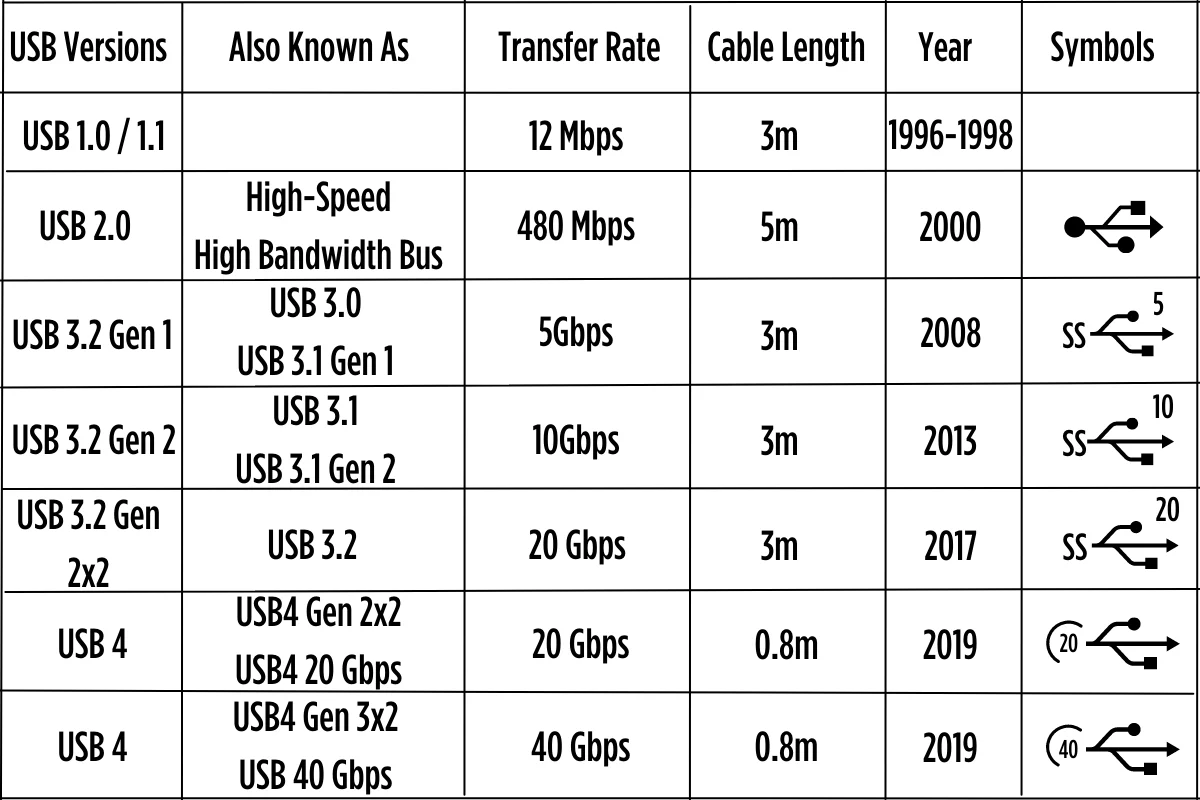
This chart summarizes USB 2.0, 3.0/3.1, 3.2, and USB4 speed capabilities and ideal applications for each generation.
Same plug doesn’t mean same speed. That’s why a cable from your old phone might work for your new SSD… but painfully slowly.
| USB Version | Max Speed | Debut Year | Where You'll Notice It |
|---|---|---|---|
| USB 2.0 | 480 Mbps | 2000 | Basic peripherals, slow charging |
| USB 3.0 / 3.1 Gen 1 | 5 Gbps | 2008 | External hard drives, faster charging |
| USB 3.2 Gen 2 | 10 Gbps | 2013 | High-speed storage, 4K monitors |
| USB4 | 40 Gbps | 2019 | Thunderbolt-level docks, multiple 4K/8K displays |
Real-world shortcut: USB 3.0 can be up to 10× faster than 2.0, and it pushes more power too. That’s why a large video file that crawls over an old 2.0 cable might fly across a 3.0 link.
Picking the Right USB Cable
When you’re digging through that drawer of mystery cords:
- Check the plug shape first. A USB-C device needs a C plug; older printers might demand Type-B.
- If speed matters, look for the spec — a USB 2.0 lead will choke a USB 3.2 SSD’s performance.
- For big power jobs (laptops, high-wattage chargers), find a USB-C cable with Power Delivery (PD) rating.
Example: Two identical-looking USB-C cables can behave totally differently — one might limp along charging a phone, while the other drives a 4K monitor and powers your laptop at the same time.
Related Read
Curious how USB cables mix with adapter cables in more specialized setups? The RF Adapter Cable section has some real-world examples worth seeing.
Jumper Cables and Proper Jump-Start Procedure
You can go years without touching jumper cables — until one cold morning, your car won’t even click. That’s when you realize those thick red-and-black cables in your trunk aren’t just dead weight. Used right, they can bring a drained battery back to life in minutes. Used wrong, they can cause sparks, damage electronics, or worse.
What Jumper Cables Are
- Construction: Heavy copper (or copper-clad aluminum) wires with insulated sheathing, usually color-coded red (+) and black (–).
- Purpose: Transfer current from a working battery (in another car or booster pack) to a dead battery.
- Gauge: Lower gauge = thicker cable = more current capacity. For most drivers, 4–6 AWG and 12–16 ft long is a sweet spot.
Safe Jump-Start Connection Order
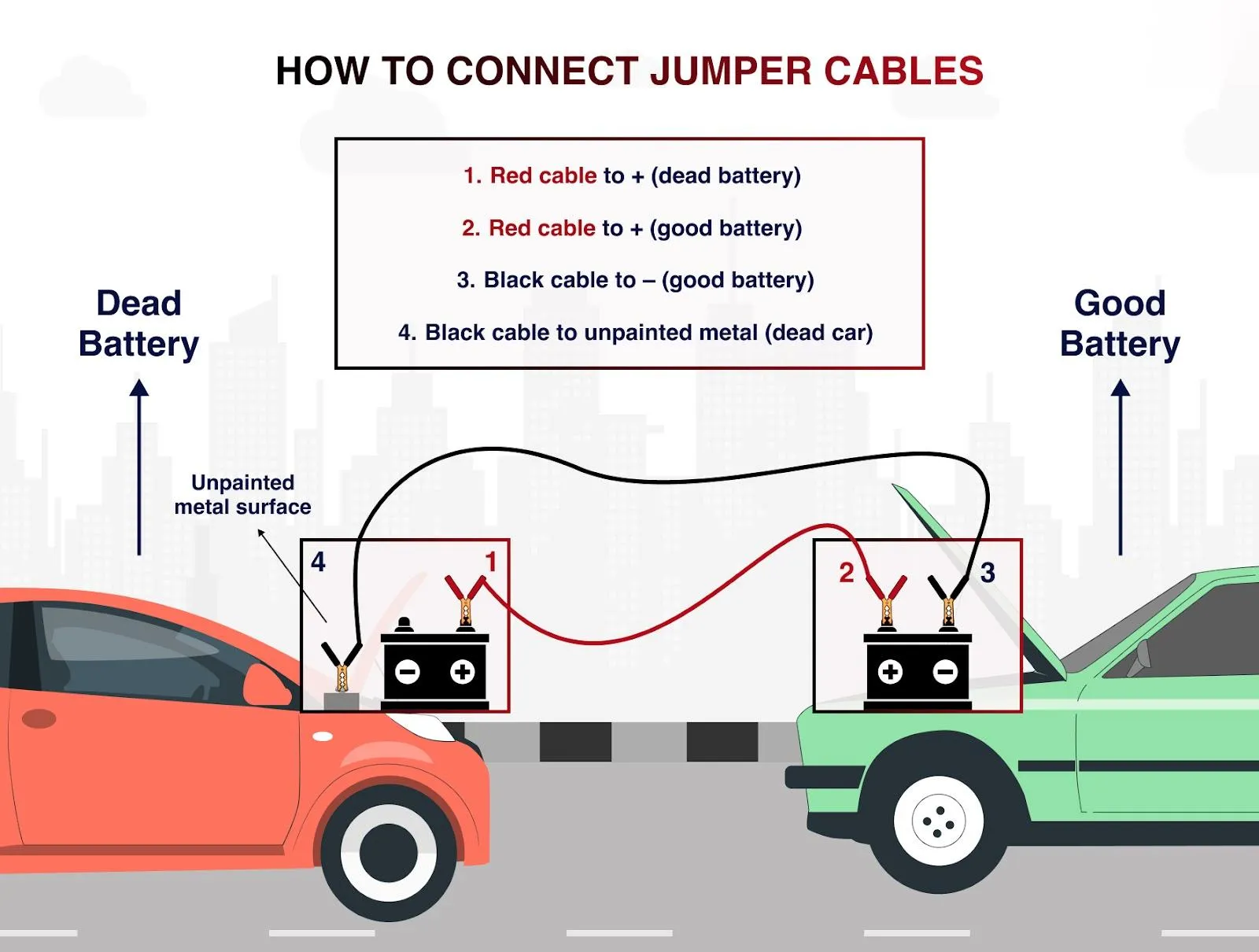
This image provides a step-by-step guide to attaching jumper cables safely, reducing spark risk and protecting vehicle electronics.
Following the correct jumper cable order isn’t just tradition — it’s about reducing the chance of a spark right near a battery vent. Here’s the step-by-step:
- Position the cars – Park close enough for cables to reach, but don’t let the vehicles touch.
- Red (+) to dead battery – Clip one red clamp to the positive terminal of the dead battery.
- Red (+) to good battery – Attach the other red clamp to the positive terminal of the good battery.
- Black (–) to good battery – Connect one black clamp to the negative terminal of the good battery.
- Black (–) to ground on dead car – Clamp the last black lead to an unpainted metal part of the dead car’s engine block or chassis — not the battery terminal.
Quick Comparison: Right vs. Wrong Order
| Step | Correct Order | Common Mistake |
|---|---|---|
| Last Connection | Black to chassis ground | Black directly to dead battery negative |
| Spark Risk | Low (away from battery) | Higher (near battery gas) |
| Electronics Safety | Higher | Lower |
Starting and Disconnecting
- Start the good car first, let it run for 1–2 minutes to feed some charge.
- Try starting the dead car — if it cranks slowly, give it another minute.
- Once running, remove cables in reverse order:
- Black from dead car’s ground
- Black from good battery
- Red from good battery
- Red from dead battery
Yes, the answer to “Which jumper cable comes off first?” is always the black (negative) from the dead car’s ground.
After the Jump
Drive the revived car for at least 15–20 minutes to recharge the battery. If it keeps dying, the battery or alternator might need replacing.
Extra tip: Keep gloves in your car — battery terminals can be grimy, and in winter, frozen metal clamps aren’t fun to handle barehanded.
Cable Ties (Zip Ties) for Cable Management
When you think of cable types, cable ties don’t actually carry electricity or data — but without them, your workspace or wiring closet can turn into a spaghetti nightmare. These small plastic strips, also called zip ties, are the simplest way to keep cables bundled, labeled, and out of the way.
And in case you’ve ever wondered — zip tie vs cable tie is not a competition. They’re the same thing. “Cable tie” is the formal term you’ll see on packaging; “zip tie” is the nickname most people use, thanks to the zipping sound they make when tightened.
Where Cable Ties Shine
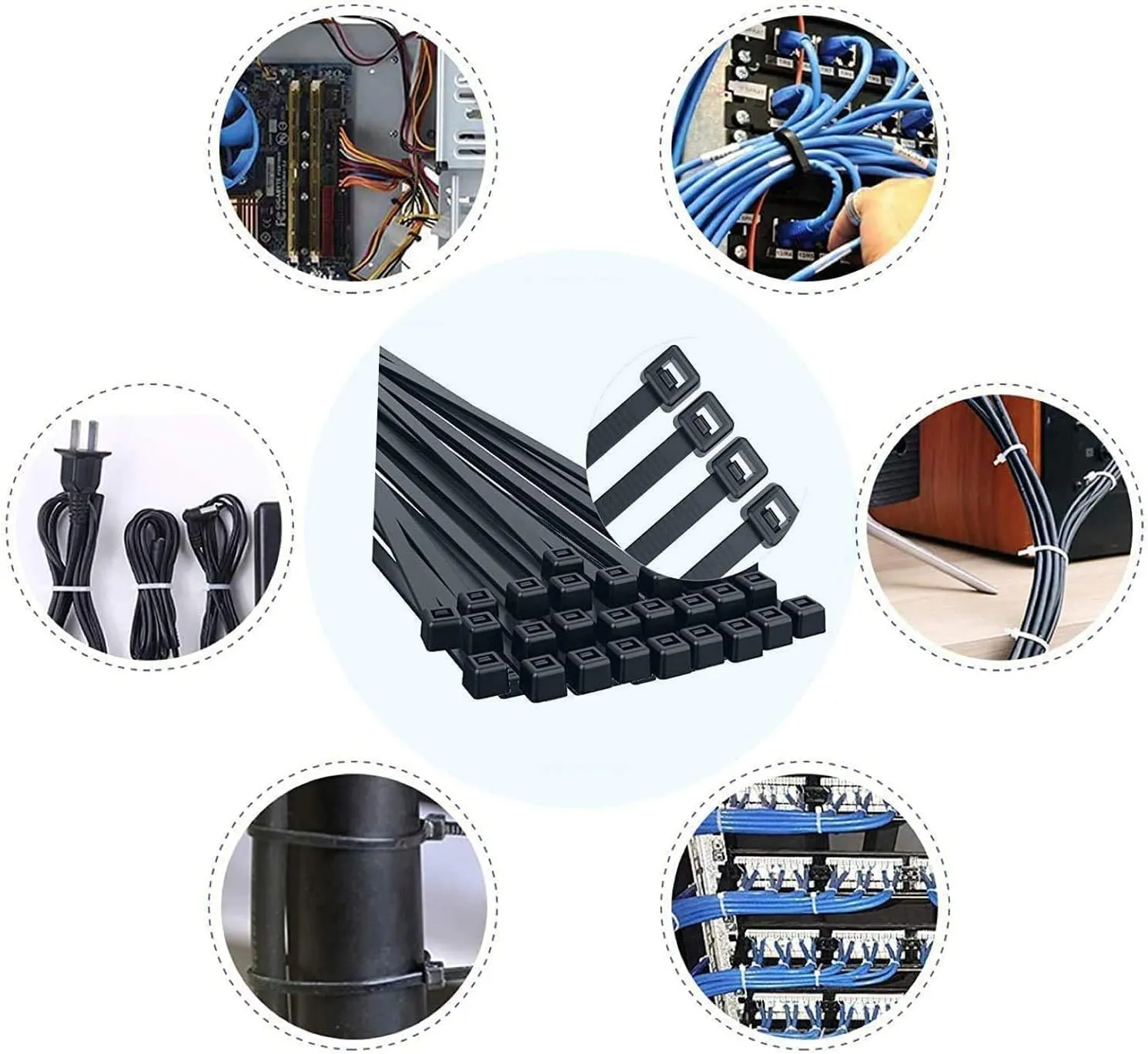
This image outlines best practices for bundling cables with zip ties, including avoiding over-tightening and keeping power and data cables separate.
This image outlines best practices for bundling cables with zip ties, including avoiding over-tightening and keeping power and data cables separate.
| Scenario | Why They Work Well | Suggested Size / Material |
|---|---|---|
| Home office – behind desks, entertainment centers | Keeps cords tidy, prevents tangles | 8-inch (200 mm) nylon ties |
| Networking racks – server rooms, patch panels | Organizes Ethernet bundles, improves airflow | 12-inch (300 mm) UV-resistant nylon |
| Automotive – under the hood, securing hoses | Heat-resistant and vibration-proof options available | Stainless steel or heat-rated nylon |
| Outdoor installs – antennas, security cams | UV-resistant ties prevent brittleness in sunlight | Black UV-rated nylon |
How to Tie Cables with a Zip Tie (Without Damaging Them)
- Group similar cables together – Keep power separate from data cables to reduce interference and heat buildup.
- Loop the tie gently – Don’t over-tighten; snug is enough. Crushing the insulation can cause performance loss in Ethernet or coax.
- Trim the excess tail – Use scissors or flush cutters for a clean finish.
- Label if needed – You can slip a tag under the tie before tightening, or use printed cable ties for quick ID.
Cable Tie Sizes and Materials
- Standard nylon – Great for indoor use; affordable and widely available.
- UV-resistant black nylon – Best for outdoor installs exposed to sun.
- Releasable cable ties – Useful if you reconfigure cables often.
- Stainless steel ties – Heavy-duty, heat-proof, and chemical-resistant, perfect for automotive or industrial settings.
Sizes range from tiny 4-inch ties for small bundles, to heavy-duty 24-inch ties for securing large conduit or pipes.
Pro tip: If you often change setups, invest in Velcro cable wraps — they’re reusable and gentler on sensitive cables. Zip ties are best for more permanent arrangements.
Internal Link Opportunity
If you’re organizing cables for devices that use RF connectors or adapter cables, see the RF Adapter Cable page for examples of compact, well-managed cable assemblies.
Bonfon Office Building, Longgang District, Shenzhen City, Guangdong Province, China

A China-based OEM/ODM RF communications supplier
Table of Contents
Owning your OEM/ODM/Private Label for Electronic Devices andComponents is now easier than ever.